

How to Change Timeframe on MT5 and Pick the Right One
A chart can look very different when you change its timeframe. A strong trend on H4 may look messy on M5.
That is why understanding MT5 Timeframes matters before you start reading charts. Each timeframe shows the same market through a different time window.
MetaTrader 5 gives traders 21 chart periods, ranging from one minute to one month. You can switch between them in a few clicks.
This guide explains how to change timeframes on MT5. You will also learn which timeframe may fit your trading style.
What Are MT5 Timeframes?
A timeframe tells MT5 how much time each candle represents on your chart.
On an M5 chart, each candle shows five minutes of price movement. On H1, each candle covers one full hour.
The same rule applies to daily and weekly charts. Each candle represents one day or one week of trading.
MT5 offers these 21 chart periods:
- Minutes: M1, M2, M3, M4, M5, M6, M10, M12, M15, M20, and M30.
- Hours: H1, H2, H3, H4, H6, H8, and H12.
- Longer periods: D1 for daily, W1 for weekly, and MN1 for monthly.
These extra choices give MT5 more flexibility than platforms with only standard periods.
Changing the timeframe does not change the market price. It only changes how price data appears on your chart.
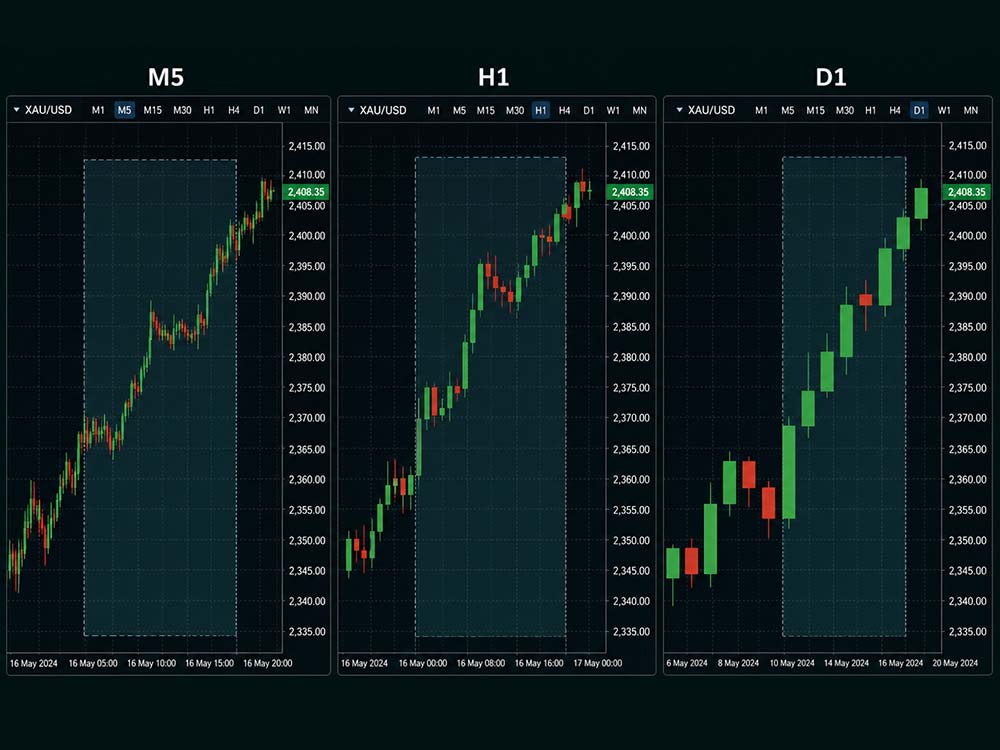
What Are MT5 Timeframes
How to Change Timeframe on MT5 Using the Toolbar
The quickest method is usually the timeframe toolbar at the top of MT5.
The default toolbar shows nine commonly used periods. These give quick access to popular minute, hourly, daily, weekly, and monthly charts.
Follow these steps:
- Open MetaTrader 5 and select the chart you want to view.
- Find the timeframe buttons along the top section of the platform.
- Click the timeframe you want, such as M15, H1, or H4.
- MT5 will update the chart using your selected candle period.
For example, selecting H4 changes every candle to four hours of price data.
This is useful when you move between timeframes often during chart analysis.
Once you choose a chart period, you can also add indicators on MT5 to study price trends and momentum.
Ready to Apply This in Live Markets?
What If the Timeframe Toolbar Is Missing?
Your toolbar may be hidden if your MT5 layout has been changed.
To bring it back:
- Click View from the main MT5 menu.
- Move to Toolbars in the menu.
- Make sure Periods is checked.
The timeframe buttons should then appear near the top of your platform.
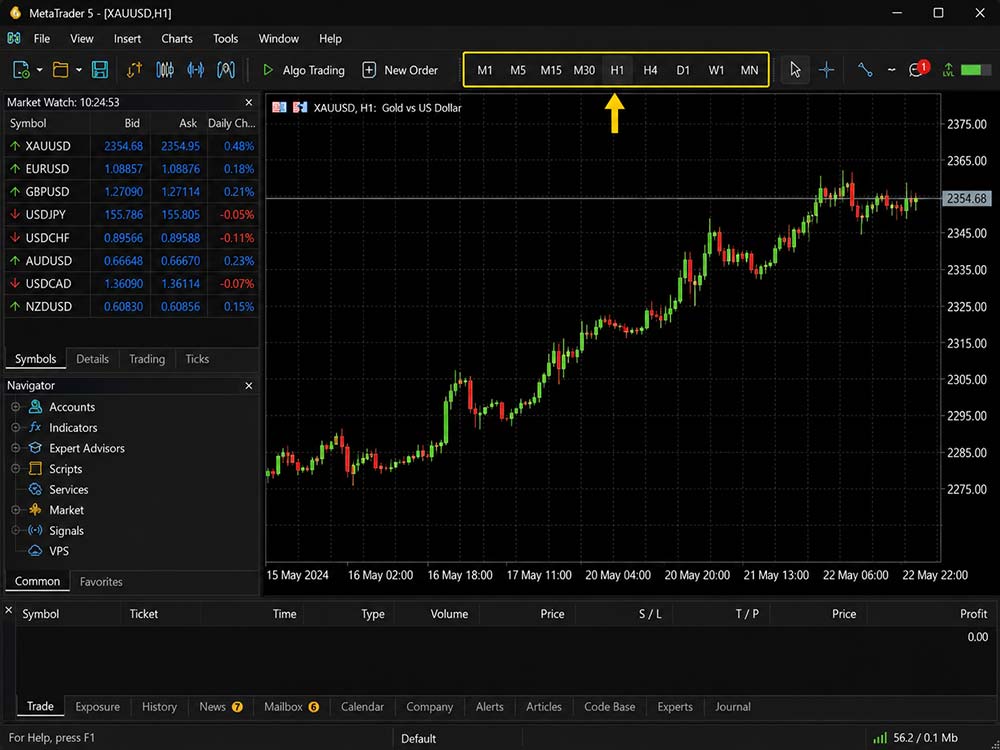
What If the Timeframe Toolbar Is Missing
How to Change MT5 Timeframes From the Chart
You do not need the toolbar to change your chart period.
You can also change MT5 Timeframes by right-clicking directly inside an open chart.
Follow these steps:
- Right-click anywhere inside your active MT5 chart.
- Find the Timeframes option in the menu.
- Choose the minute, hourly, daily, weekly, or monthly group.
- Select the exact period you want to display.
MT5 may first display common choices such as M1, M5, M15, and M30. Opening the Minutes section gives access to more minute periods.
The same applies to hourly periods. You can choose H1, H2, H3, H4, H6, H8, or H12.
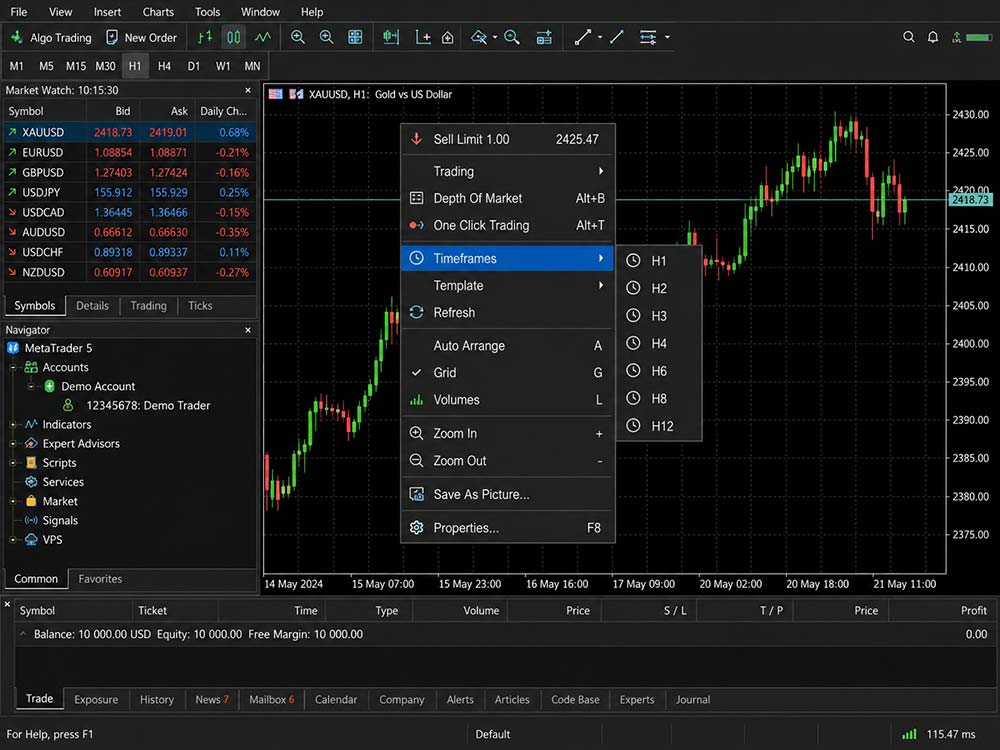
How to Change MT5 Timeframes From the Chart
Change the Timeframe From the Charts Menu
There is another simple method built into the top MT5 menu.
Open Charts and select the option for chart periods or timeframes. You can then choose the period you want to use.
This method takes slightly more time than clicking the toolbar.
Still, it can help if you prefer using the main menus instead of shortcuts.
All three methods change the same setting. Use whichever feels easiest during your normal chart routine.
How to Customize the MT5 Timeframe Toolbar
You probably will not use all 21 periods every day.
MT5 lets you change which timeframe buttons appear in your toolbar. This can keep your chart setup cleaner.
Right-click the timeframe toolbar and choose Customize.
You can then:
- Add timeframe buttons you use often.
- Remove periods that you rarely check.
- Move buttons up or down to change their order.
- Build a toolbar around your normal trading setup.
For example, a trader might keep M5, M15, H1, H4, and D1 visible. This setup covers both short-term entries and wider market structure.
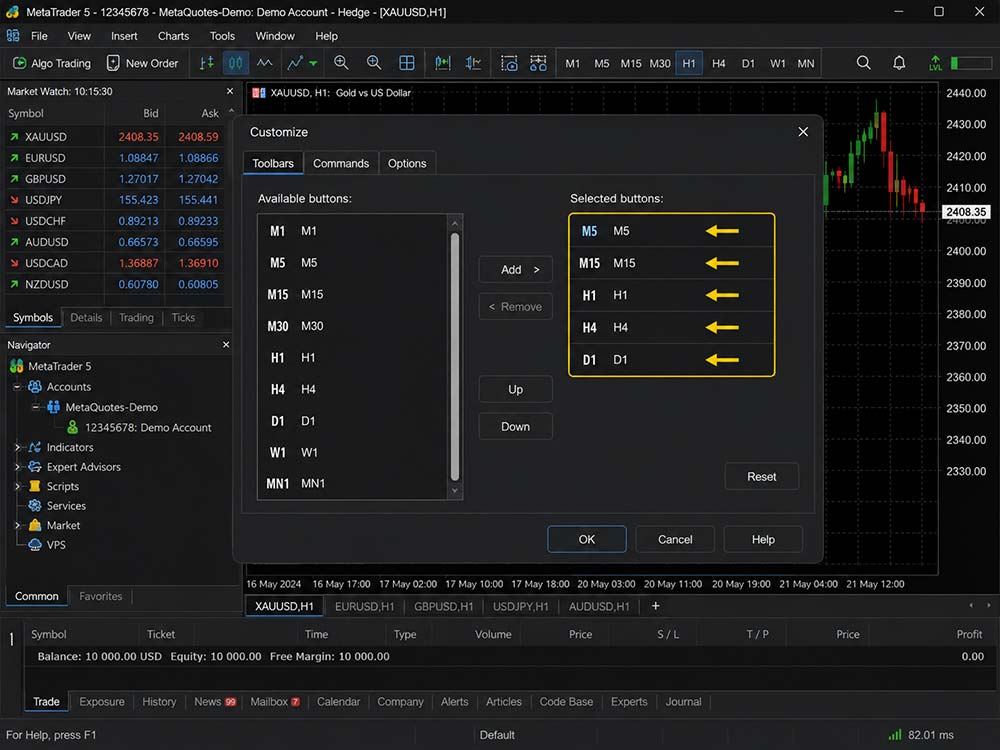
How to Customize the MT5 Timeframe Toolbar
Which MT5 Timeframe Should You Use?
There is no single best timeframe for every trader.
The right choice depends on how long you hold trades. It also depends on how much chart noise you want to see.
M1 to M5: Very Short-Term Trading
M1 and M5 show small price moves in much more detail.
These charts can suit traders looking for quick entries and exits. However, short periods can contain more market noise.
Prices can move quickly, so decisions often need to happen faster.
M15 to M30: Short-Term Trading
M15 and M30 provide more structure than very short charts.
They can work well for intraday traders who want several setups without watching every small price move.
Support, resistance, and short-term trends may also appear more clearly.
H1 to H4: Intraday and Short Swing Trades
H1 and H4 remove much of the noise seen on minute charts.
These MT5 Timeframes can help traders see broader price direction while still finding active trade setups.
H4 is also useful when you want fewer candles to study during the day.
D1 and Above: Wider Market Trends
Daily, weekly, and monthly charts show much larger market moves.
They are useful when studying long-term support, resistance, and major trend direction.
A monthly candle contains far more price data than an hourly candle. That makes small intraday moves less important on the chart.
Traders who need additional tools can alsoinstall a custom indicator on MetaTrader 5 and apply it across different timeframes.
Use More Than One Timeframe
You do not have to choose one timeframe and ignore the rest.
Many traders compare several MT5 Timeframes before making a trading decision.
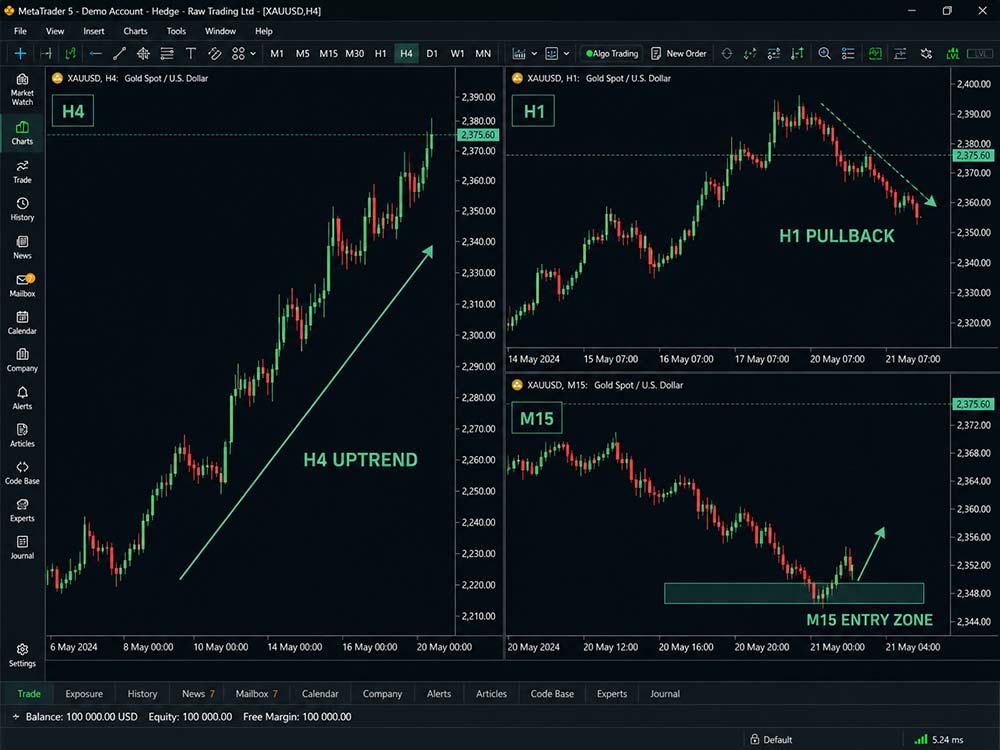
For example, you could start with H4 to check the main trend. Then move to H1 to study the current price structure.
After that, M15 could help you look more closely at a possible entry area.
This approach gives you both the wider view and more detailed price action.
Suppose XAU/USD is rising clearly on H4. A drop on M5 may look bearish at first.
Once you check H4, that same drop could simply be a small pullback.
That context can stop you from treating every short-term move as a full trend change.
The timeframe changes how price data appears, while indicators help traders read that data. See our guide to the best MT5 indicators for common chart tools.
Use More Than One Timeframe
Common Mistakes When Choosing MT5 Timeframes
Changing timeframe takes seconds, but choosing one without a plan can cause problems.
One common mistake is jumping between charts until one supports the trade you want.
Instead, decide which timeframes you will use before looking for an entry.
Another mistake is using M1 when you cannot watch price closely. Very short charts can change before you have time to react.
Traders can also ignore the wider trend when focusing only on M5 or M15.
Checking H1, H4, or D1 first can give you useful market context before studying smaller moves.
Avoid changing your timeframe just because a trade looks bad. Your chart period hould match your trading plan, not your emotions.
If you are still learning the platform's charts and controls, our guide on how to trade on MetaTrader 5 covers the main tools beginners need.
A Simple MT5 Timeframe Setup for Beginners
You do not need all 21 periods when starting with MetaTrader 5.
A simple three-chart approach can make analysis easier:
- H4: Use it to identify the wider market trend and key price levels.
- H1: Use it to study current structure and possible trade areas.
- M15: Use it to study entries and shorter price movements.
This setup is only an example, not a fixed trading rule.
A trader holding positions for several days may prefer D1, H4, and H1. A shorter-term trader may prefer H1, M15, and M5.
The important part is giving each timeframe a clear job.
Ready to Apply This in Live Markets?
Final Thoughts
Learning how to change MT5 Timeframes is simple. Choosing the right timeframe takes more thought.
Use shorter charts when you need a closer view of price movement. Use higher periods when you need more market context.
You can also combine several periods instead of relying on one chart.
With Dominion Markets on MetaTrader 5, build a chart setup that matches how you trade. Keep your timeframe choices consistent so each chart serves a clear purpose.
FAQs: MT5 Timeframes
1. How many timeframes does MT5 have?
MetaTrader 5 supports 21 chart periods, ranging from one-minute charts to monthly charts. These timeframes help traders analyze price movement across different trading styles.
2. How do I change the timeframe on MT5?
You can change the timeframe in MT5 using the Periods toolbar, by right-clicking on your chart, or through the Charts menu. Each option allows you to select a different chart period.
3. What does H4 mean on MT5?
H4 means each candle on the chart represents four hours of price movement. Since there are six four-hour periods in a day, six H4 candles cover a complete 24-hour period.
4. What is the best MT5 timeframe for beginners?
H1 and H4 timeframes are often easier for beginners because they provide a clearer view of market trends compared with very short timeframes. The best timeframe depends on your trading strategy and goals.
5. Can I customize MT5 timeframes?
Yes. MT5 allows you to customize the Periods toolbar by adding, removing, and rearranging timeframe buttons according to your trading preferences.
Ready to Apply This in Live Markets?


