
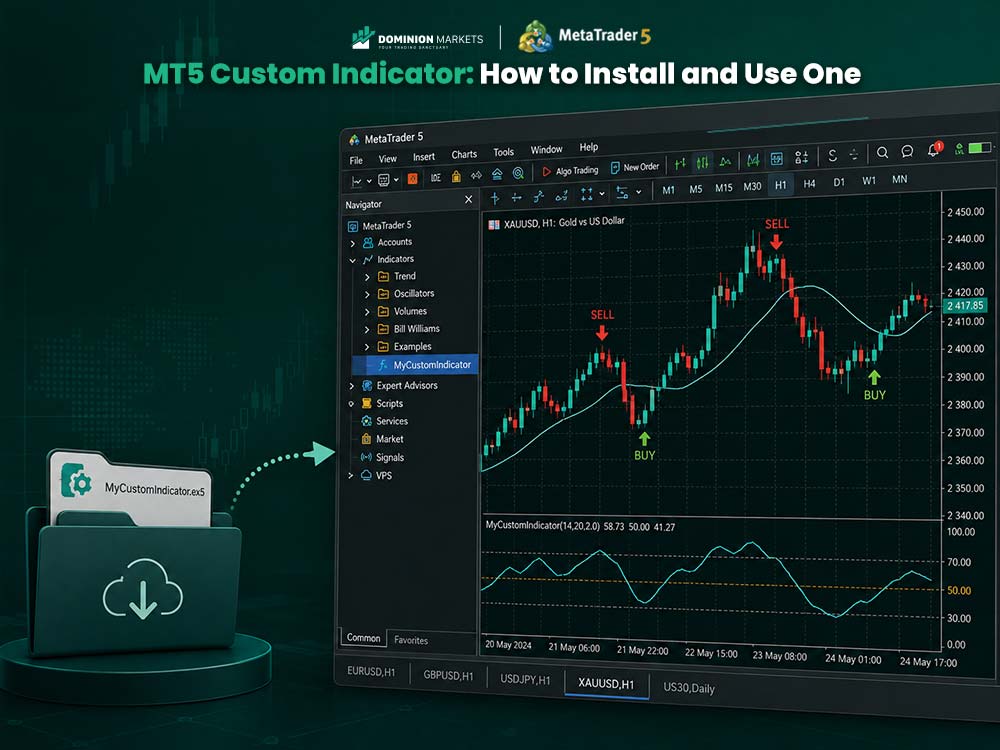
MT5 Custom Indicator: How to Install and Use One
MetaTrader 5 comes with many built-in tools for chart analysis. Yet some traders want tools that fit their own trading style.
That is where an MT5 custom indicator can help. It can add new signals, chart tools, alerts, or data views to MT5.
Custom indicators can mark trends, momentum shifts, support zones, or possible entry areas. Some also create dashboards or change how price data appears.
Installing one is simple once you know where the files belong. This guide explains the full process, from download to chart setup.
What Is an MT5 Custom Indicator?
An MT5 custom indicator is a tool built with the MQL5 coding language. It studies market data and shows the results on your chart.
MetaQuotes separates custom indicators from Expert Advisors. Indicators are built for market analysis, while Expert Advisors can automate trading tasks.
A custom indicator might display:
- Buy and sell arrows
- Trend direction
- Support and resistance areas
- Volatility levels
- Momentum changes
- Trading session zones
- Custom moving averages
- Multi-pair dashboards
- Price alerts
Some indicators sit directly over the price chart. Others appear in a separate window below the main chart.
For example, a custom trend line may appear beside candles. A momentum tool may use its own panel below them.
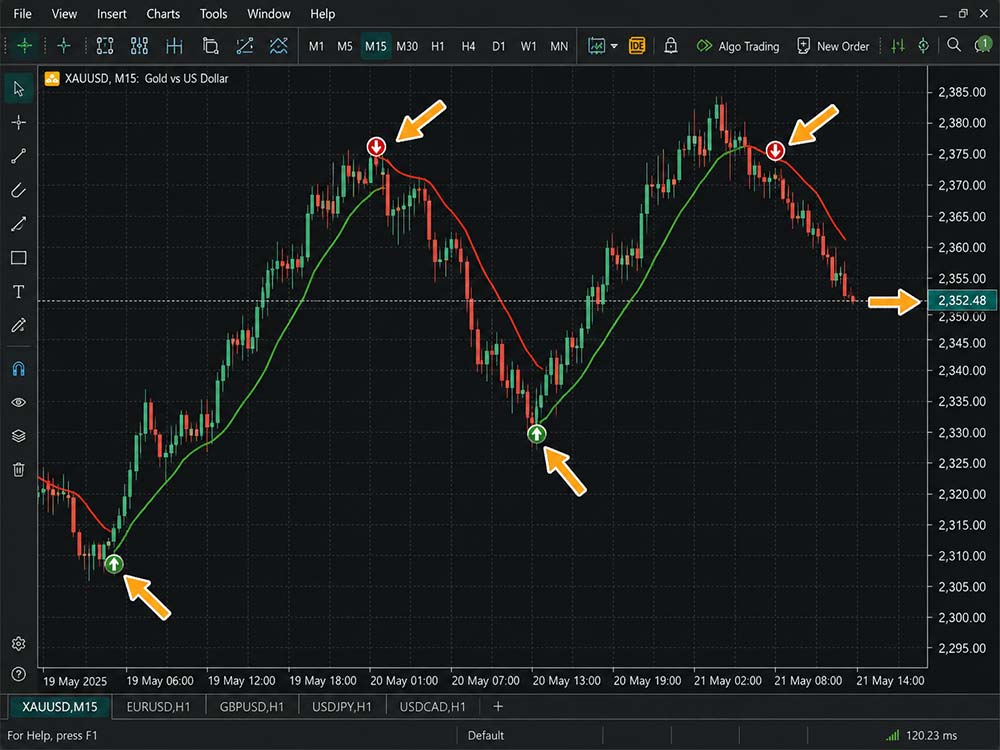
What Is an MT5 Custom Indicator
MT5 Custom Indicator File Types Explained
Before installing anything, check which file type you downloaded.
Most >custom indicators for MT5
.MQ5 File
An .mq5 file contains the source code used to build the indicator. Developers can open and edit this code inside MetaEditor.
The source code must be compiled before MT5 can run it properly. Compilation creates the executable version of the tool.
.EX5 File
An .ex5 file is the compiled version that MetaTrader 5 can run.
Many paid indicator sellers provide only the EX5 file. This helps stop others from viewing or copying their source code.
Do not confuse MT4 and MT5 files either. MT4 normally uses .mq4 and .ex4 files instead.
MT5 uses .mq5 and .ex5 files. Putting an MT4 indicator inside MT5 will not make it work.
Before downloading any third-party tools, compare them with some of the top MT5 indicators for trading already available on the platform.
How to Install an MT5 Custom Indicator
The easiest method uses the Data Folder inside MetaTrader 5.
You do not need to search through Windows folders yourself. MT5 can take you straight to the correct location.
Step 1: Download the Indicator
First, download the indicator from a source you trust.
Your download might arrive as an EX5 or MQ5 file. It could also arrive inside a ZIP folder.
If the file is compressed, extract it before continuing. MT5 cannot load an indicator directly from a ZIP file.
Avoid unknown files that ask you to install extra software. Be careful when downloading trading tools from random websites.
Step 2: Open MetaTrader 5
Launch your MT5 desktop platform.
Make sure you are using MetaTrader 5 rather than MetaTrader 4. The two platforms use different folders and file formats.
Step 3: Open the MT5 Data Folder
Click File from the top menu.
Then select:
File > Open Data Folder
Windows File Explorer should now open the folder used by your MT5 platform.
Step 4: Open the Indicators Folder
Inside the Data Folder, open:
MQL5 > Indicators
MetaQuotes stores custom indicator files inside the /MQL5/Indicators folder.
You can place your file directly inside this folder. You can also create another folder to keep your tools organized.
For example:
MQL5 > Indicators > My Indicators
This can help when you start using several indicators.
Ready to Apply This in Live Markets?
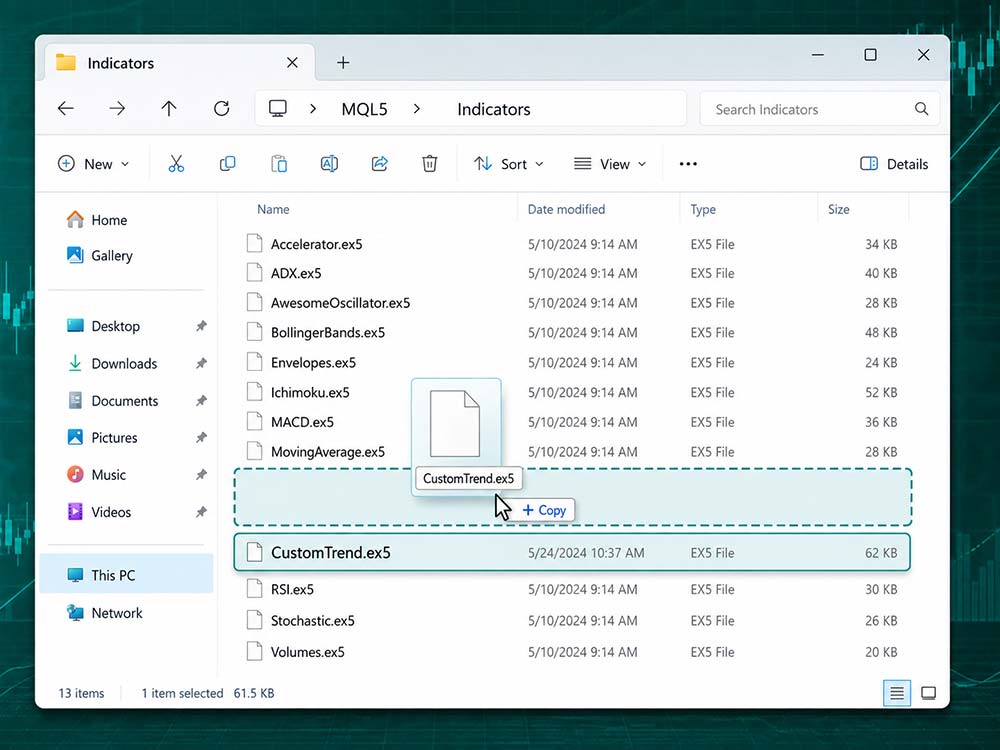
Open the Indicators Folder
Step 5: Paste the Indicator File
Copy your .ex5 or .mq5 file into the Indicators folder.
Once the file has been copied, return to MetaTrader 5.
Your indicator may not appear straight away. MT5 needs to refresh its list of available tools.
Step 6: Refresh the Navigator
Open the Navigator panel inside MT5.
If you cannot see it, use the Navigator option from the View menu.
Find the Indicators section. Right-click inside the Navigator and select Refresh.
Your new MT5 custom indicator should now appear within the indicator list. Restarting MT5 can also help if the indicator remains missing.
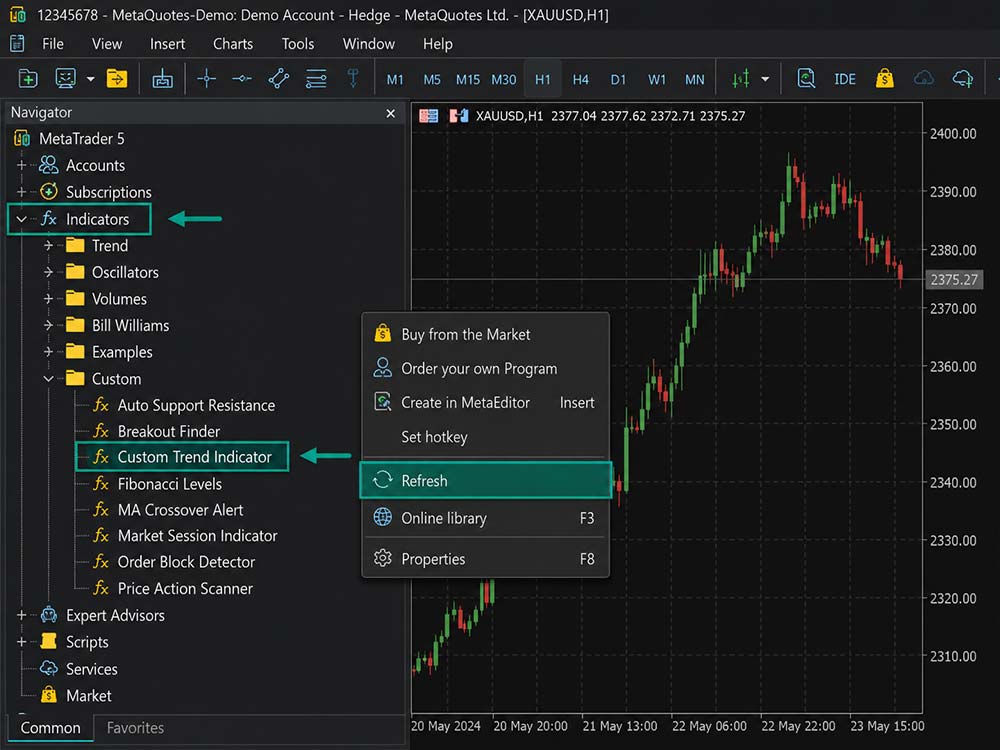
Refresh the Navigator
How to Add the Custom Indicator to an MT5 Chart
Once installed, applying the indicator takes only a few steps.
Open the chart you want to study. Then locate your custom indicator inside the Navigator.
Drag the indicator from the Navigator onto your chart.
MT5 will open a settings window before adding it.
The available settings depend on how the indicator was built. Many tools let you adjust periods, signal rules, colors, or alert settings.
Check each setting before clicking OK.
You can also change line colors, widths, and styles after adding an indicator. MetaTrader 5 supports these changes through the indicator properties.
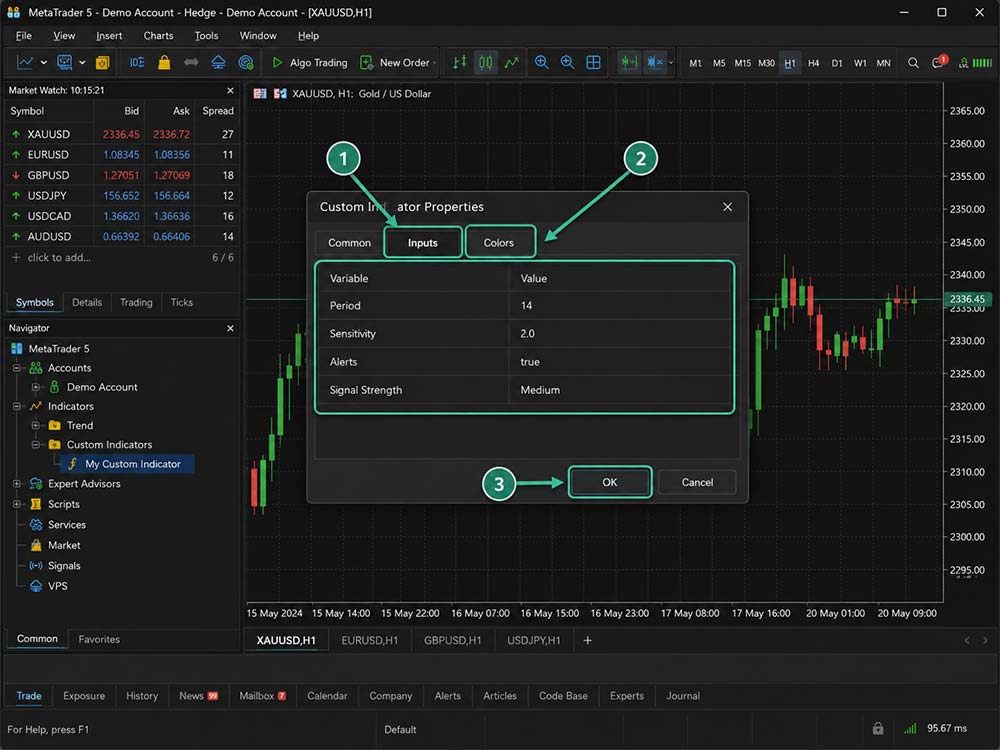
How to Add the Custom Indicator to an MT5 Chart
How to Use Custom Indicators for MT5
Installing an indicator is only the first step. You also need to understand what its signals mean.
Avoid placing trades simply because an arrow appears on your chart.
Start by learning what the indicator measures. Check whether it follows trend, momentum, price levels, volume, or volatility.
Then test how it reacts across different market conditions.
A trend indicator may work well during strong moves. The same tool could produce weak signals when price moves sideways.
Try the indicator on a demo account before using it for live decisions. Watch how signals behave across several trading sessions.
You should also test different chart timeframes.
A signal on the one-minute chart can behave very differently from one on the hourly chart.
Indicator signals can change depending on the chart period you use. Learn how MT5 timeframes work before applying the same setup across multiple charts.
Custom indicators should support your trading plan, not replace it. Price structure and risk rules still matter when making trade decisions.
What If the Indicator Does Not Appear?
A missing indicator usually comes from a simple installation issue.
Start by checking these common problems.
Check the File Location
Make sure the file is inside:
MQL5 > Indicators
Do not place it inside the Experts or Scripts folders.
Check the File Type
An MT4 .ex4 file will not work as an MT5 indicator.
You need the correct MT5 version, such as .ex5 or compatible .mq5 source code.
Refresh MetaTrader 5
Right-click inside the Navigator and press Refresh.
If that fails, close MT5 and open it again.
Compile the MQ5 File
If you only received an MQ5 source file, you may need to compile it.
Open MetaEditor and locate the indicator. Open the file and select the Compile option.
MetaEditor will show errors when the source code cannot compile. Broken code may need to be fixed by the indicator developer.
Check the Indicator Settings
Sometimes the indicator is running but cannot be seen.
Check its colors and display options. A white indicator line may disappear against a hite chart background.
The tool might also need more past price data before showing a signal.
MT5 already includes many built-in tools. If you are new to them, start with our guide on how to add indicators on MetaTrader 5 before installing custom files.
Can You Add Custom Indicator MT5 Android?
Traders often search for add custom indicator MT5 Android because they want the same tools on mobile.
The standard installation method above applies to the desktop platform.
MetaTrader 5 for Android includes 30 technical indicators. Users can add those indicators through the Indicators menu inside the chart.
The Android app does not provide the desktop MQL5 > Indicators file workflow. You cannot copy an EX5 file into the app using the desktop steps.
If your trading method depends on a custom indicator, run it through MT5 desktop. You can still use the mobile app to watch markets and manage trades.
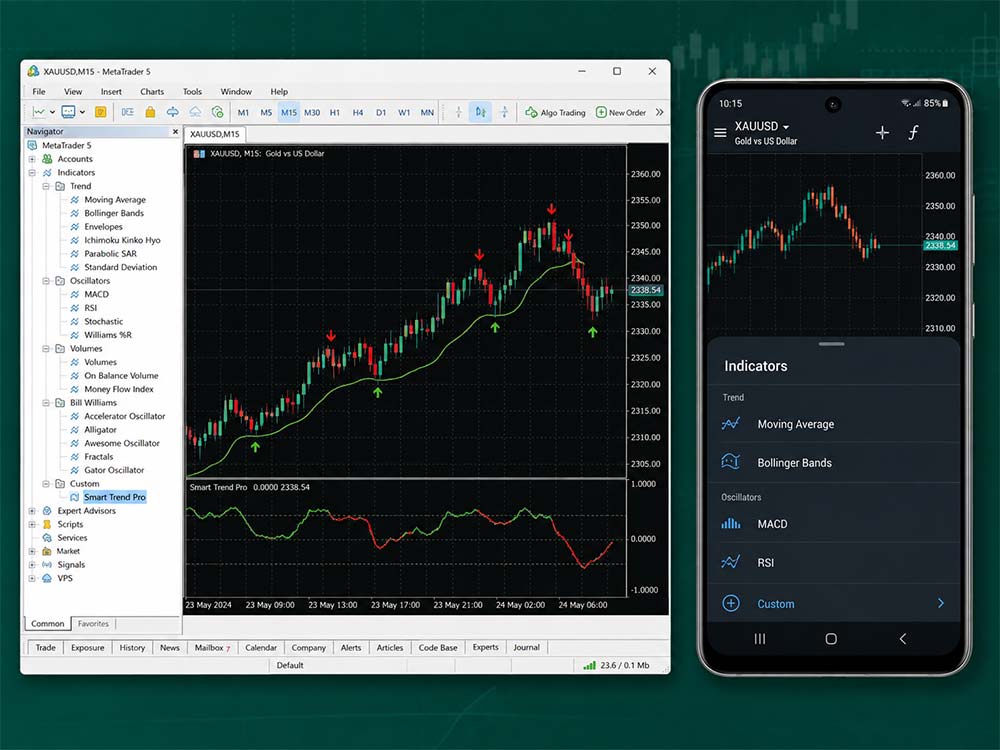
Can You Add Custom Indicator MT5 Android
Are MT5 Custom Indicators Safe?
The MT5 platform itself can run custom tools, but the source still matters.
Do not download unknown indicators simply because they promise strong trading results.
Check the developer, reviews, and download source first. Be extra careful when a tool asks for added permissions or outside files.
Some custom tools can request access to DLL files. Only allow that access when you trust the source and understand why it is needed.
A useful indicator should help you read the market. It should never require blind trust in every signal.
Ready to Apply This in Live Markets?
Final Thoughts
An MT5 custom indicator gives you more ways to study price beyond MT5's standard tools.
Installation is straightforward. Open the Data Folder, place the file inside MQL5 Indicators, then refresh your Navigator.
After that, add the indicator to your chart and review its settings carefully.
Test every new tool before depending on its signals. A custom indicator works best when it supports a clear trading plan.
With Dominion Markets and MetaTrader 5, traders can use chart tools and custom indicators to build a setup that matches their approach.
FAQs: MT5 Custom Indicators
1. Where do I put a custom indicator in MT5?
Open File > Open Data Folder > MQL5 > Indicators. Copy your EX5 or MQ5 indicator file into that folder. Refresh the Navigator after copying the file. The indicator should then appear under the Indicators section.
2. What file format does an MT5 custom indicator use?
MT5 custom indicators normally use MQ5 source files or compiled EX5 files. MT4 files such as EX4 and MQ4 are built for MetaTrader 4 and are not directly compatible with MT5.
3. Why is my MT5 custom indicator not showing?
The indicator file may be placed in the wrong folder or may have been created for MT4. Refreshing the MT5 Navigator may help. MQ5 source files can also fail if the code contains compilation errors.
4. Can custom indicators trade automatically?
No. Custom indicators are designed for market analysis and displaying trading information. Expert Advisors (EAs) are used when automated trading actions are required.
5. Can I install custom indicators on MT5 Android?
The native MT5 Android app uses its built-in indicator list and does not support installing custom EX5 or MQ5 indicators through the desktop MQL5 folder system. Use MT5 desktop when your trading setup depends on custom indicators.
Ready to Apply This in Live Markets?


