

How to Add Indicators on MT5: A Step-by-Step Guide
Indicators are some of the most useful tools inside MetaTrader 5. They help traders read trends, momentum, volume, and possible changes in price.
MT5 already includes many popular tools, such as Moving Averages, MACD, RSI, and Bollinger Bands. You can also install custom indicators made by other traders or developers.
Learning how to add indicators on MT5 takes only a few minutes. The exact steps depend on whether you use desktop or mobile.
This guide explains both methods. We will also cover custom indicators and common installation problems.
What Are Indicators on MT5?
A technical indicator uses price, volume, or other market data to create trading signals. Traders use these signals to study market conditions before making trading decisions.
Some indicators appear directly over the price chart. A Moving Average is a common example.
Others appear inside their own window below the chart. MACD and many oscillators work this way.
MT5 desktop currently includes 38 built-in technical indicators. They are grouped into trend indicators, oscillators, volume tools, and Bill Williams indicators.
The Android version includes 30 built-in indicators across similar groups.
You can also add custom tools when the built-in options do not suit your trading method.
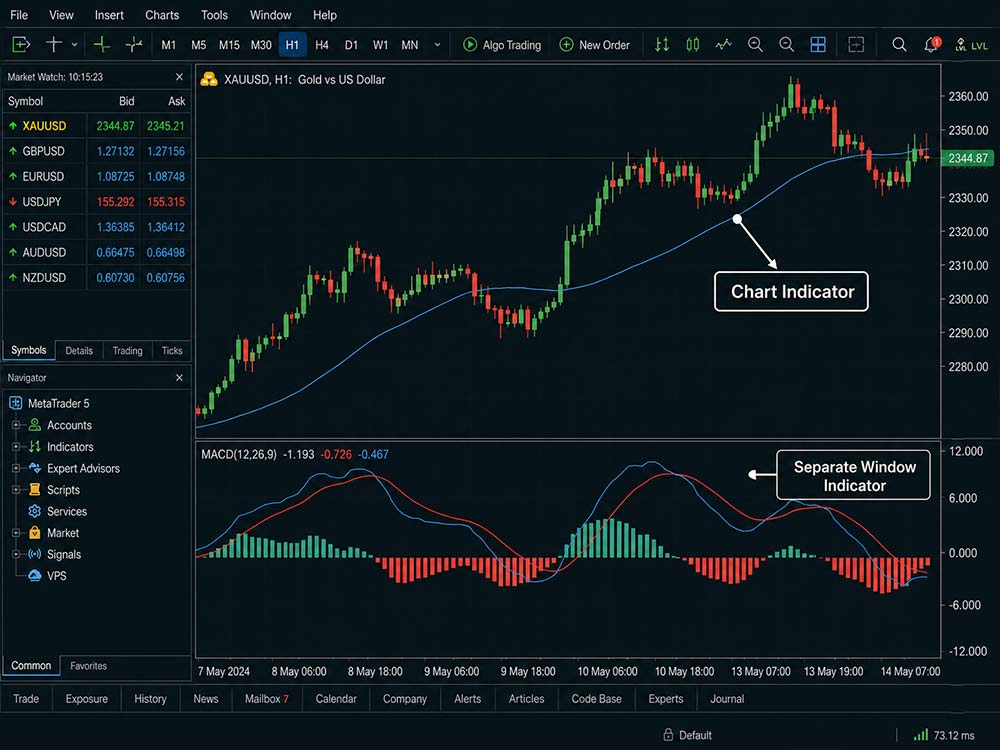
What Are Indicators on MT5
How to Add Indicators on MT5 Desktop
Adding a built-in indicator on the desktop platform is simple. You do not need to download or install any files.
There are two main ways to do it.
Method 1: Add an Indicator From the Navigator
Open MetaTrader 5 and select the chart you want to study.
Then follow these steps:
- Open the Navigator panel on the left side.
- Find the Indicators section.
- Expand the indicator group you want.
- Find your chosen indicator.
- Drag the indicator onto your chart.
- Adjust its settings.
- Click OK.
The indicator will appear on the active chart.
MT5 groups indicators inside the Navigator to make them easier to find. The desktop platform also lets you add them through the Insert menu.
Ready to Apply This in Live Markets?
Method 2: Use the Insert Menu
You can also add an indicator from the top menu.
Click:
Insert → Indicators
You will see groups such as Trend, Oscillators, Volumes, and Bill Williams.
Choose an indicator and adjust its settings before clicking OK.
Both methods produce the same result. Use whichever feels faster during chart analysis.
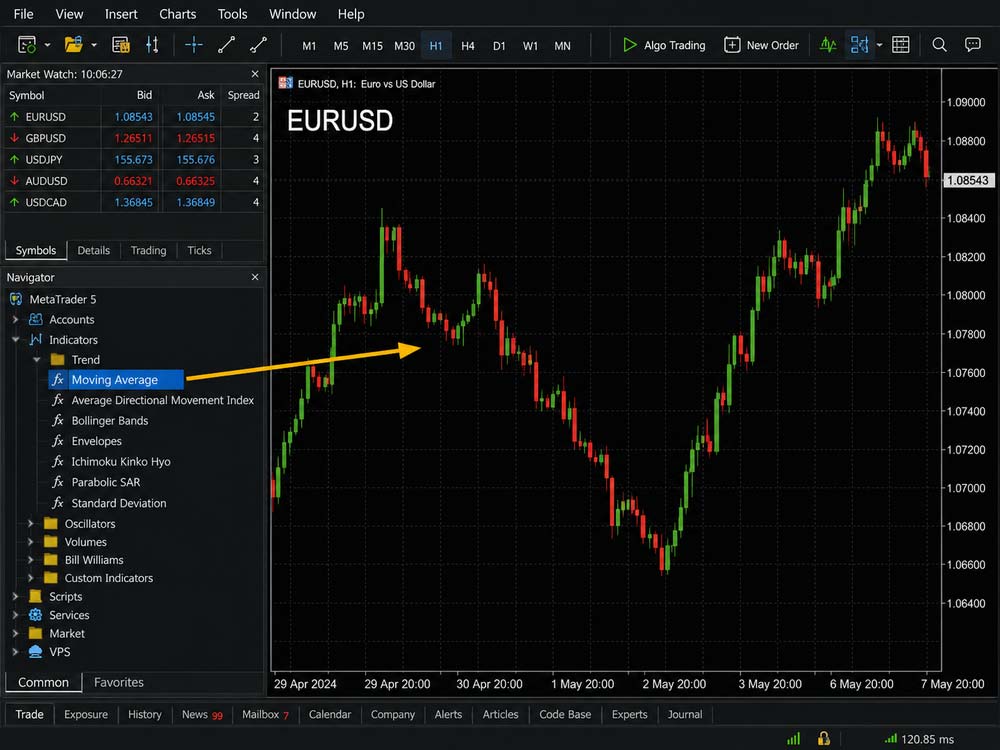
How to Add Indicators on MT5 Desktop
How to Change MT5 Indicator Settings
Knowing how to add indicators on MT5 is only the first step. You should also understand the main settings before using them.
The available options depend on the indicator.
Common settings include:
- Period: Controls how many candles the indicator uses.
- Method: Sets how certain calculations are made.
- Shift: Moves some indicator lines forward or backward.
- Apply to: Chooses which price data the indicator uses.
- Style: Controls the line color, thickness, or display type.
MT5 lets indicators use Close, Open, High, Low, Median Price, Typical Price, and Weighted Close data. An indicator can even use data produced by another indicator.
For example, you could apply a Moving Average to another indicator's data.
Do not change settings only because another trader uses them. Indicator settings should match your timeframe and trading method.
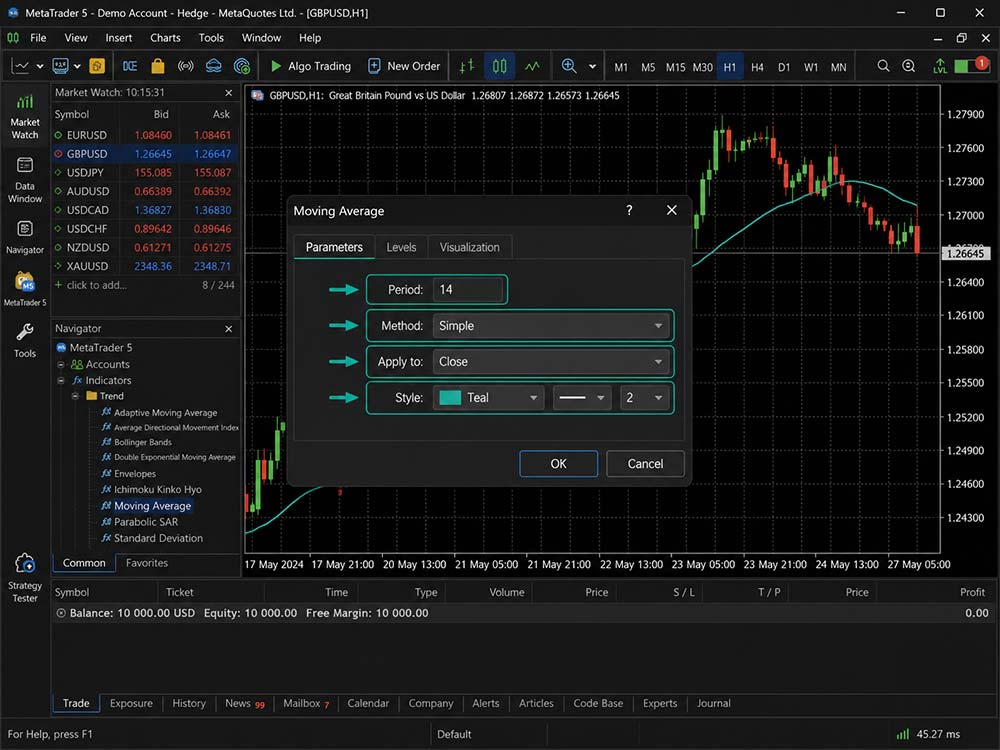
How to Change MT5 Indicator Setting
How to Add Indicators on MT5 Mobile
Adding indicators on MT5 Android works differently from the desktop version.
Start by opening the chart you want to study.
Then follow these steps:
- Open your chosen trading chart.
- Tap the Indicators icon on the chart toolbar.
- Select the main chart or an indicator window.
- Choose the indicator you want.
- Adjust its settings.
- Confirm the changes.
If no indicators are active, MT5 opens the available indicator list directly.
If you already have indicators running, MT5 first shows the chart windows. You can then choose where the next indicator should appear.
Indicators such as Moving Average appear over the main price chart. Tools such as MACD create their own window automatically.
MT5 Android allows up to 32 indicators across all open charts.
You can also hide indicators without deleting them. This is useful when you want to inspect a clean price chart.
The same indicator can behave differently depending on the chart period. Learn how to change the timeframe on MT5 and choose one that suits your analysis.
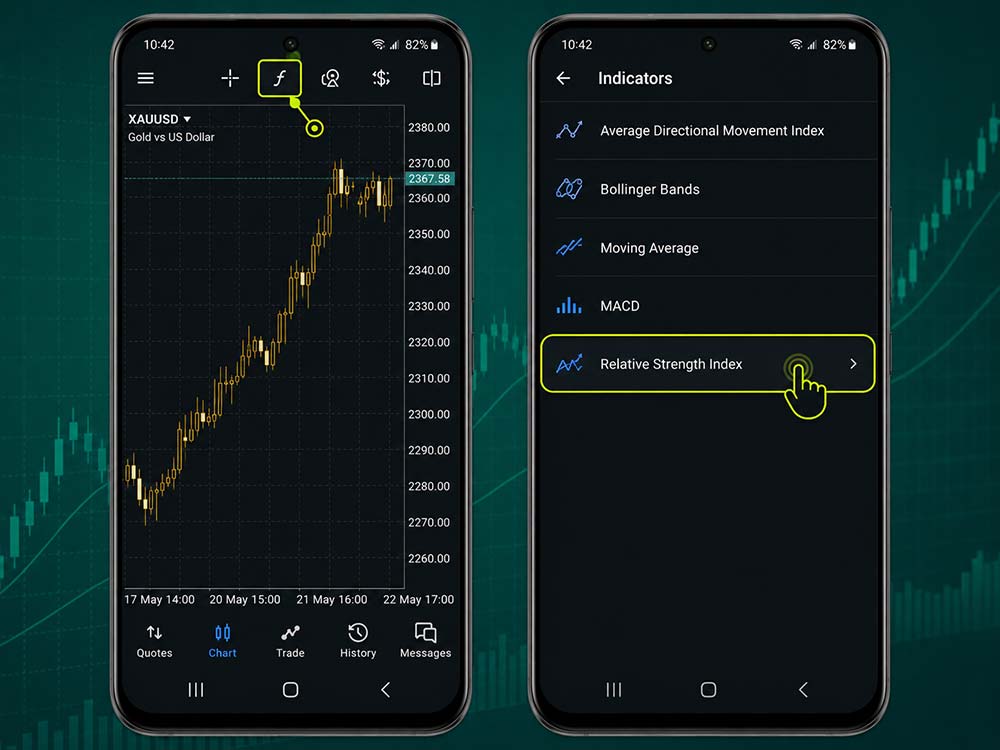
How to Add Indicators on MT5 Mobile
How to Add Custom Indicators on MT5
Built-in indicators cover many common trading methods. Still, some traders want tools that MT5 does not include by default.
A custom indicator is created using the MQL5 programming language. It can draw lines, arrows, histograms, alerts, or other chart data.
Custom MT5 indicators usually come in two file types:
- .mq5: Source code that can be opened and edited.
- .ex5: A compiled file that MT5 can run.
An .mq5 source file needs to be compiled before MT5 can run it. An .ex5 file is already compiled.
If your indicator comes inside a ZIP or RAR folder, extract it first.
MT5 also supports third-party tools. See how to install a custom indicator on MT5 if the indicator you need is not built into the platform.
Step 1: Download the Indicator
Start with a trusted source.
The official MQL5 Market and Code Base are common options. MT5 provides access to both custom tools and source code through its trading platform services.
Avoid unknown files that ask you to install unrelated software.
Step 2: Open the MT5 Data Folder
Launch MetaTrader 5 on your computer.
Click:
File → Open Data Folder
Windows will open the folder used by your MT5 installation.
Step 3: Open the Indicators Folder
Inside the Data Folder, open:
MQL5 → Indicators
The complete path should be:
Data Folder → MQL5 → Indicators
You can place the file directly inside this folder. You can also create your own folder to keep custom tools organized.
Step 4: Paste the Custom Indicator
Copy your .ex5 or .mq5 file into the Indicators folder.
Return to MetaTrader 5 once the file is in place.
Step 5: Refresh MT5
Open the Navigator panel.
Right-click inside the Navigator and select Refresh.
Your new indicator should now appear under Indicators. Drag it onto a chart to start using it.
Not sure which tool to use? Compare some of the best MetaTrader 5 indicators for trading before adding one to your chart.
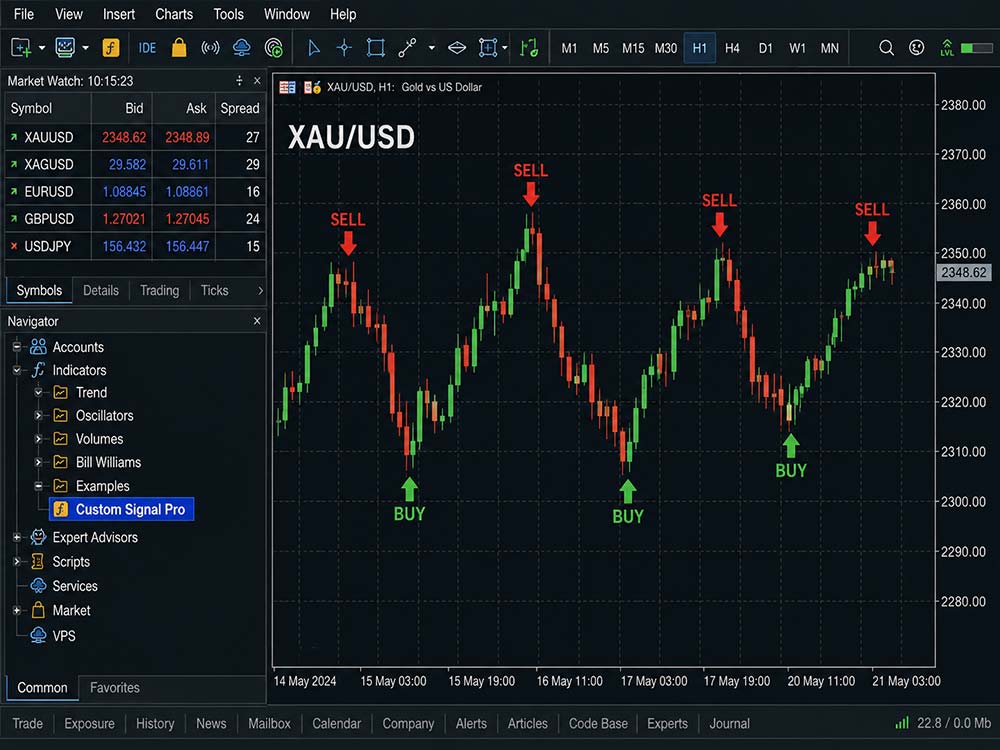
How to Add Custom Indicators on MT5
What If a Custom Indicator Does Not Appear?
Sometimes an indicator does not appear after you copy the file.
First, right-click the Navigator and select Refresh again.
Then check the file type. MT5 custom indicators should normally use .mq5 or .ex5 files.
An MT4 .ex4 file will not work as an MT5 .ex5 indicator.
If you have an .mq5 file that was not compiled, open MetaEditor and compile it.
You can press F4 inside MT5 to open MetaEditor. Open the indicator file, click Compile, and check for errors.
If the program contains code errors, MT5 cannot create a working indicator.
You should also check the indicator's colors. Sometimes the tool is working, but its lines match the chart background.
Some custom indicators may also need more historical chart data before they display correctly.
Be careful with tools requesting DLL Imports. Only enable this when the indicator comes from a source you trust.
How to Remove an Indicator From MT5
Charts can become difficult to read when too many indicators are running.
On desktop, open the indicator list or right-click the indicator itself. Select the option to remove the indicator from the chart.
On MT5 Android, open the Indicators section and use the delete option. You can select one or several indicators for removal.
The mobile platform also lets you hide indicators without removing their settings.
This makes it easy to compare clean price action against your indicator signals.
Built-In vs Custom MT5 Indicators
Built-in indicators are usually the best place for new traders to start.
They install with MT5 and require no extra files. Popular tools also have plenty of guides and examples available.
Custom indicators offer more choice.
They may provide:
- Custom alerts
- Multi-timeframe signals
- Pattern detection
- Divergence tools
- Trading dashboards
- Different chart displays
Still, more indicators do not always lead to better decisions.
Using five tools that show the same market signal can create unnecessary noise. A smaller set of indicators is often easier to manage.
Start with tools that have a clear purpose inside your trading plan.
Ready to Apply This in Live Markets?
Final Thoughts
Once you know how to add indicators on MT5, changing your chart setup becomes much easier.
Built-in tools can be added within seconds through Navigator, Insert, or the mobile indicator menu. Custom indicators take a few extra steps because their files must be installed first.
Start with a simple chart and choose indicators that serve a clear purpose. Test each setting before using its signals in live market conditions.
Dominion Markets supports MetaTrader 5, giving traders access to MT5 charting and technical analysis tools across their trading setup with raw spreads and 0.1 pips..
FAQs About How to Add Indicators on MT5
1. How do I add an indicator to MT5?
On the MT5 desktop platform, open the Navigator window and drag your chosen indicator onto the chart. You can also add indicators through Insert → Indicators.
2. Can I add custom indicators to MT5?
Yes. You can add custom indicators by placing .mq5 or .ex5 files inside the MQL5 → Indicators folder, then refreshing the Navigator window.
3. Why is my custom indicator not showing in MT5?
The indicator file may be saved in the wrong folder or may require compiling. Check the file type, confirm it is compatible with MT5, and refresh the Navigator before trying again.
4. Can I add indicators on MT5 mobile?
Yes. On MT5 mobile, open a chart, tap the Indicators icon, and select the indicator you want to apply.
5. How many indicators can I add on MT5 Android?
MT5 Android supports up to 32 indicators across all open charts.
Ready to Apply This in Live Markets?


